Login and Authentication#
Overview#
SysGit provides enterprise-grade authentication through integration with your organization's Git provider infrastructure. The authentication process is fully delegated to your configured Git provider, ensuring secure access control and seamless integration with existing identity management systems.
Step 1: Access the Login Page#
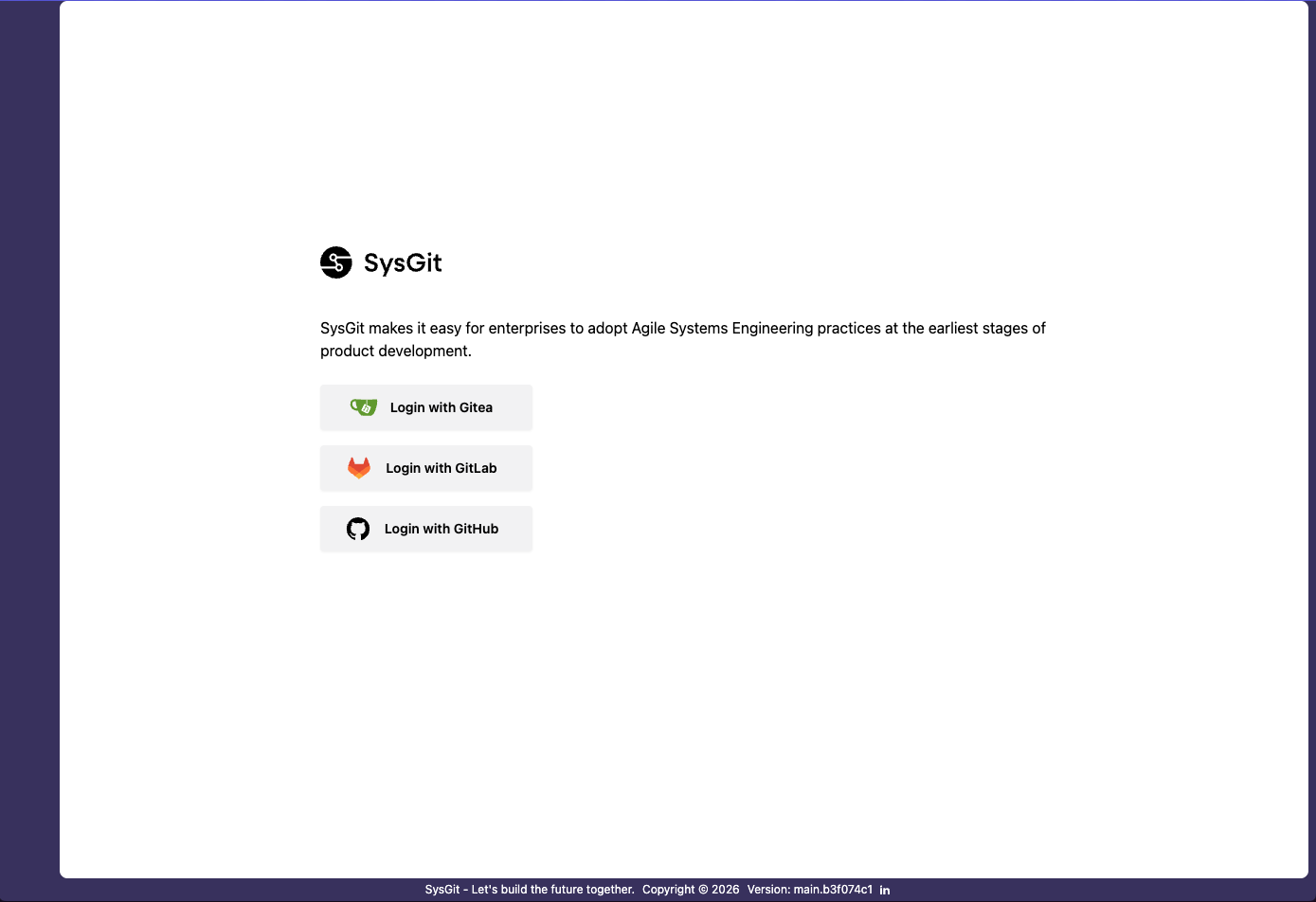
Upon navigating to SysGit, users are presented with the authentication interface. The login page displays available Git provider options that have been configured by your IT department. SysGit supports multiple Git provider integrations including Gitea, GitLab, and GitHub, allowing organizations to leverage their existing version control infrastructure for authentication.
The interface includes a brief description: "SysGit makes it easy for enterprises to adopt Agile Systems Engineering practices at the earliest stages of product development."
Step 2: Select Your Git Provider and Initiate Authentication#
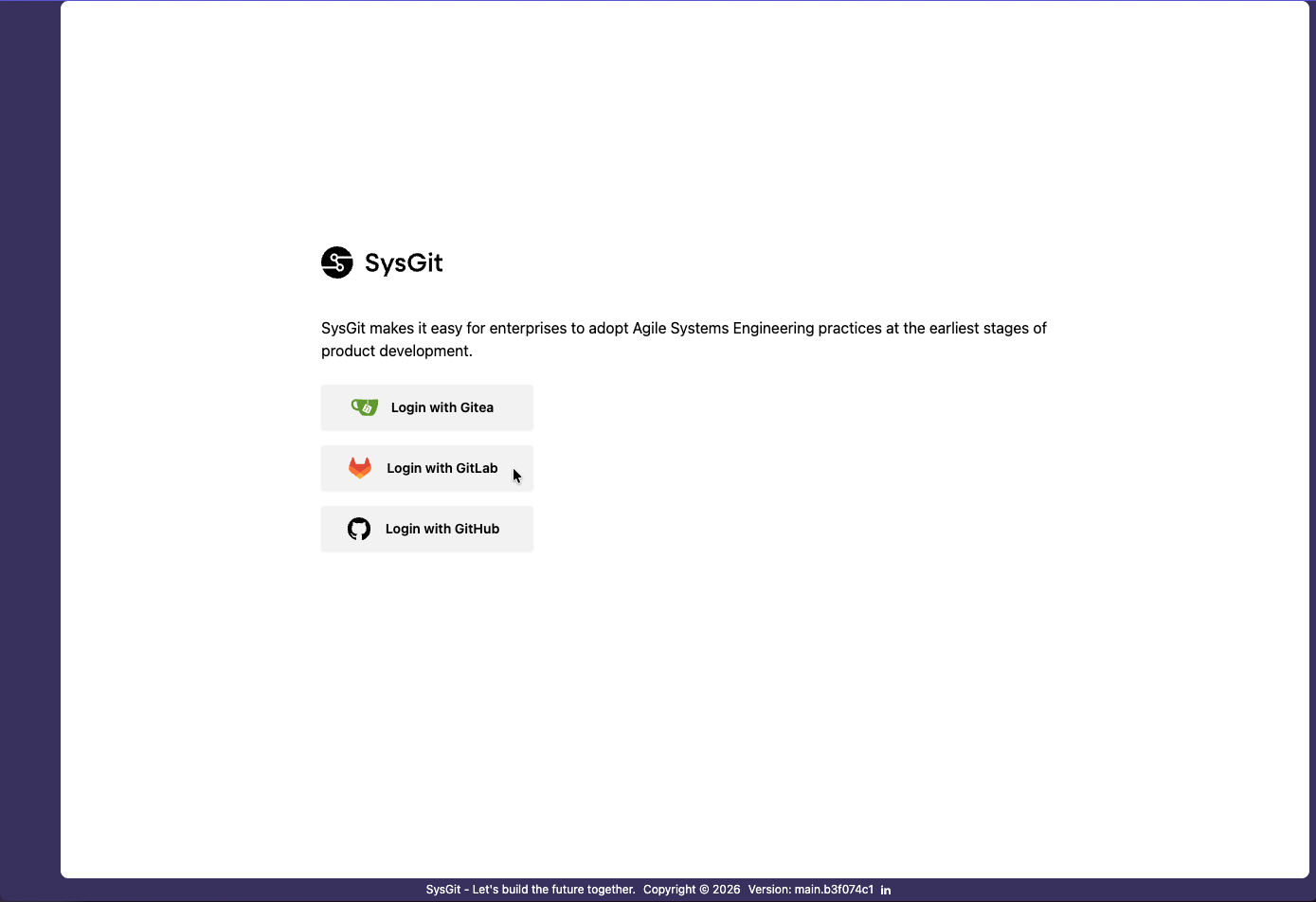
Users must select their organization's configured Git provider from the available options. The available providers are determined by your IT department's SysGit configuration and will vary based on your organization's infrastructure.
In this example, three Git providers are available:
- Login with Gitea
- Login with GitLab
- Login with GitHub
Select the appropriate provider that matches your organization's Git infrastructure. Clicking a provider option redirects you to that provider's authentication service.
Step 3: Authenticate with Your Git Provider#
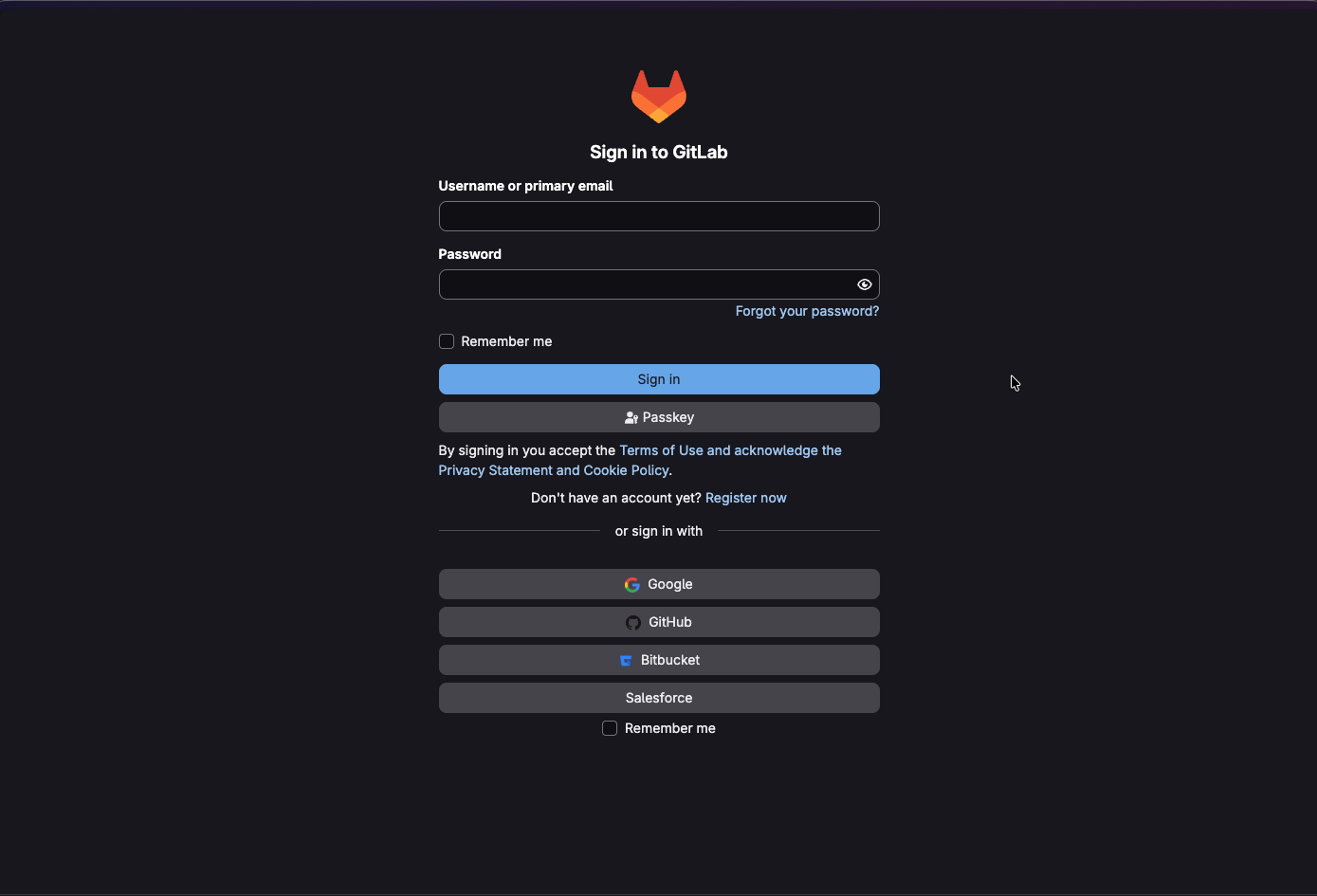
The authentication process is entirely handled by your Git provider's security infrastructure. Users are redirected to their Git instance where they can authenticate using their credentials.
The authentication interface typically presents several options:
- Username or primary email input field
- Password field
- "Forgot your password?" recovery option
- Single sign-on options (Google, GitHub, Bitbucket, Salesforce, etc.)
Step 4: Complete Authentication#
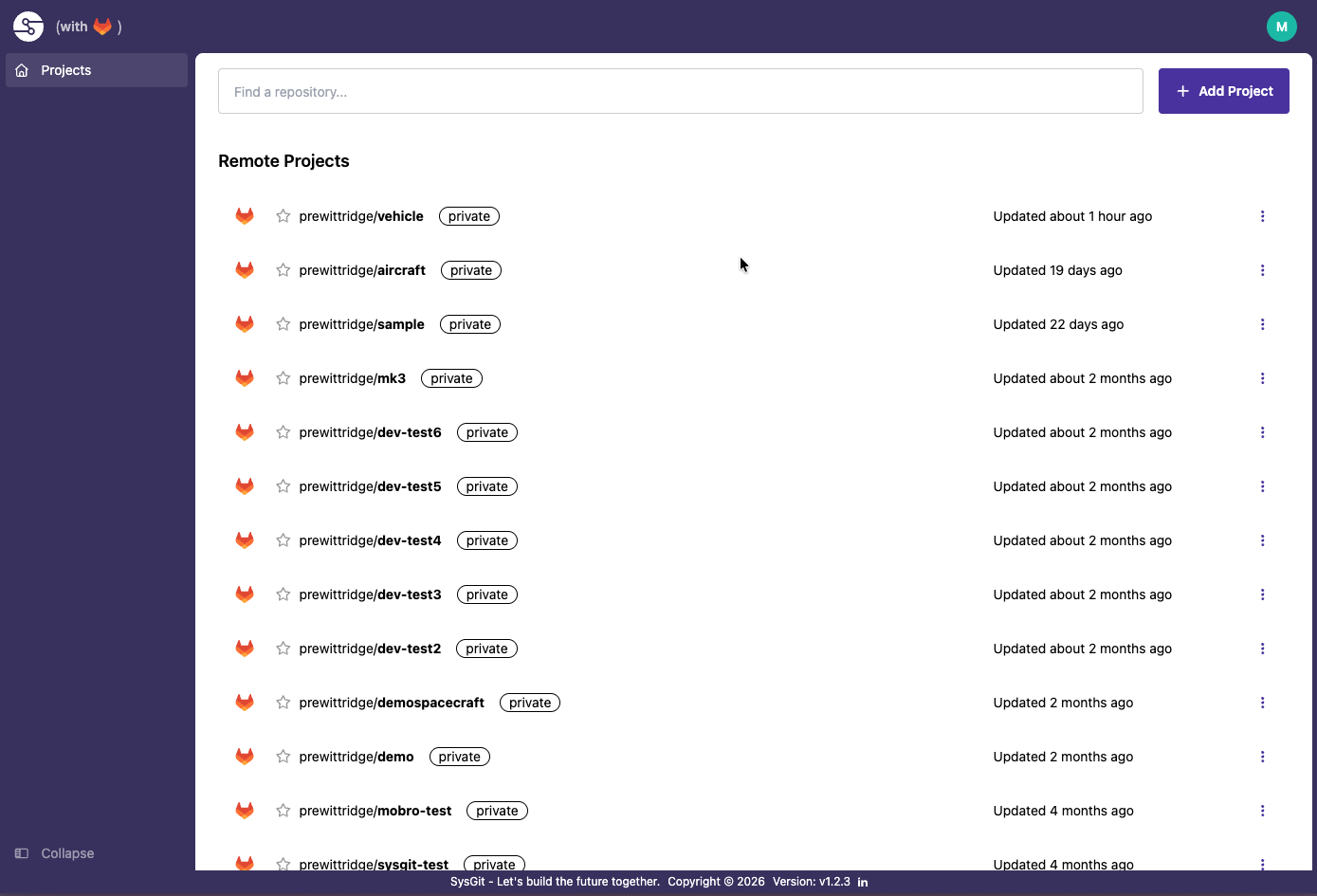
After successful authentication through your Git provider, you are automatically redirected back to SysGit and logged into your account. The main Projects dashboard is displayed, showing your available remote repositories and ready for you to begin working.
Security Notes#
- All authentication is handled exclusively by your configured Git provider (GitLab, GitHub, Gitea, etc.)
- SysGit does not store or manage user passwords
- Authentication tokens follow your Git provider's security policies
- Session management is controlled by your organization's Git provider configuration
- Users must have appropriate access rights on the Git provider to access corresponding projects in SysGit
Troubleshooting#
Cannot See Login Options#
If you don't see any Git provider options on the login page, contact your IT department. The available providers must be configured by your system administrator.
Authentication Fails#
If authentication fails:
- Verify your credentials with your Git provider
- Check that you have an active account on the configured Git provider
- Contact your IT department if issues persist
Session Expires#
If your session expires, simply return to the login page and authenticate again. Session duration is controlled by your Git provider's security policies.
Additional Information#
For questions about available authentication providers or access issues, please contact your IT department or system administrator.